How to Deploy Youkeeps AI Assistant in Your Organization: A Step-by-Step Guide
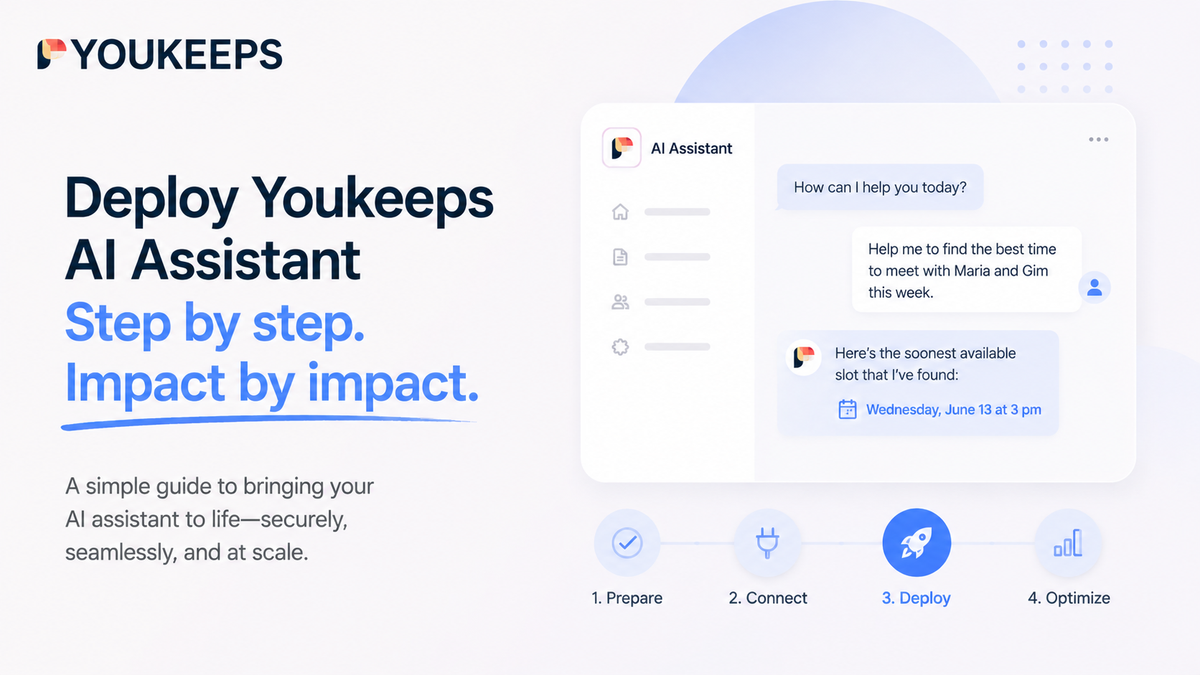
Up and running in under 10 minutes. No infrastructure changes required.
Youkeeps AI Personal Assistant lives inside Microsoft Teams and Outlook, right where your team already works. Deployment is straightforward whether you're an end user installing it yourself or an IT admin rolling it out across the organization.
This guide covers both paths.
What your team gets
Before we get into the steps, here's what Youkeeps does once it's deployed:
- Schedule meetings 70% faster with instant availability lookup across all participants
- Coordinate complex meetings with multiple participants across time zones
- Automate rescheduling and eliminate the calendar back-and-forth entirely
No new apps to learn. No new interfaces to navigate. It works as a chat inside Teams, the same way your team already communicates.
For Teams users: self-service setup
If your organization allows self-service app installs, any user can get started in about two minutes:
Step 1. Go to Microsoft Marketplace or the Microsoft Teams Store
Step 2. Search for Youkeeps AI Personal Assistant
Step 3. Click "Get it now" or Install and follow the prompts
Note: Depending on your company's internal policies, admin consent may be required. If you see a permissions prompt you can't approve, share this guide with your IT administrator.
Step 4. Once installed, open Youkeeps in MS Teams. It will also appear in your chat list
Step 5. Say Hello and log in with your Microsoft account
That's it. Ask Youkeeps to help coordinate a meeting or pick from the suggested prompts to get started.
For IT admins: org-wide deployment
Prerequisites
- Active Microsoft 365 subscription
- Active Youkeeps AI Executive Assistant license
Deployment steps
Step 1. Sign into the Microsoft Teams admin center
Step 2. Navigate to Teams apps → Manage apps
Step 3. Find Youkeeps and open the app's detail page. Go to the Permissions tab
Step 4. Under "Org-wide permissions" select Review permissions and consent
Step 5. A dialog will open listing the permissions the app is requesting (detailed below). Review carefully, then select Accept to grant consent on behalf of all users in your organization
Once done, the app will be able to access the specified resources for all users in the tenant. Individual users will no longer be prompted to consent separately.
Architecture
Youkeeps is built on Microsoft Graph API, providing direct, secure integration with users' calendars, Outlook, and Teams.
Everything works out of the box. No additional admin configuration, no custom connectors, no infrastructure changes.
Security and compliance
Ratings and certifications
- AAAA rating according to SAST and DAST reports
- Successfully passed Microsoft Marketplace Security Verification
- Currently under active Microsoft 365 Certification process, listed as a trusted agent
Data handling
- Minimal data retention: all personal data is automatically deleted after the meeting
- End-to-end encryption for all communications
- GDPR and CCPA compliant
- Full alignment with enterprise-grade compliance standards
Hosting
- Hosted on Microsoft Azure with redundancy across two data centers (EU and US)
- Benefits from Azure's default compliance and security controls, including Azure CIS, SOC TSP, and ISO 27001
Permissions breakdown
Youkeeps requests only delegated permissions, meaning it acts on behalf of the signed-in user, never independently. Here's what each permission does:
| Permission | What it does | Why Youkeeps needs it |
|---|---|---|
| Calendars.Read / Calendars.ReadWrite | Full access to users' calendars | Allows Youkeeps to read availability and create or adjust meetings on the user's behalf |
| Email / Mail.Send | Send mail as the user | Enables sending meeting-related emails (like voting links) through the user's account |
| offline_access | Maintain access between sessions | Critical for long-running tasks like updating schedules overnight or after token expiry |
| People.Read | Read relevant people lists | Lets Youkeeps suggest participants based on the user's contacts (e.g., "Schedule with Alex and Mary") |
| profile | View basic profile info | Enables personalization like "Here's your next meeting" with the user's display name |
| openid / User.Read / User.ReadBasic.All | Sign in and read user profile | Used for authentication and tailoring the experience ("Welcome, Peter!") |
Need help?
Our support team is here if you run into anything during deployment:
- Phone: +1 430 999 35 39
- Email: support@youkeeps.com
- Privacy Policy: View here
- Terms of Use: View here
About Youkeeps: We build an AI scheduling agent for enterprise, integrated with Microsoft 365 and Copilot. Learn more →